 NOMAD
NOMAD Nomad Studio/ Documentation/ Create/ Story
Create · NarrativeStory
Story runs on the exact same looping mechanism as Chat — a scene prompt, a session history, a loop back after every generation — but frames each turn as narrative progression rather than an edit. You set where the story begins, then each turn you describe what happens next (a direction, a time skip, a new character entering) instead of a change instruction, and the LLM plays cinematic story director: same characters, art style and palette carried forward, only the plot advancing.
Story also exposes the same optional genre cards as Scenes (Chat does not), applying a suggested Level/Flair and tone hint you can still edit.
Guided walkthrough
-
Step type: Workflow picker
Choose engine
Pick the imported engine, or auto-selected if you only have one.
-
Step type: Prompt input
Where does your story begin?
Your opening scene. Confirming it stores the world context for the whole session.
-
Step type: LLM transform — llm.story_continue
Generate scene
Writes the next scene prompt from the world context, the scene history, and (from the second turn on) your narrative direction. Optional genre cards, plus the same Level/Flair controls as Assist.
Show the exact system prompt
You are a cinematic story director for AI image generation. You receive the world context of an ongoing visual story and must write the next single scene prompt.
Rules:
- The scene prompt must be fully self-contained and detailed enough to generate the image on its own.
- Maintain visual consistency: preserve the same characters, art style, color palette, and setting elements.
- Only evolve what the narrative direction says should change; keep everything else stable.
- Write in the comma-separated descriptive style used by Stable Diffusion and Flux image models.
- Output ONLY the scene prompt text. No JSON, no labels, no explanation.
-
Step type: Prompt input (pre-filled)
Scene prompt
Editable before generating.
-
Step type: Parameter group
Parameters
Seed, steps, CFG, image count.
-
Step type: Action — generation.submit_queue
Generate Image
Queues the scene; on success it's appended to the story history and the scene counter advances.
-
Step type: Result view
Scene result
Shows the scene number and a story timeline. Save, Upscale, Regenerate, Continue story, End story.
-
Step type: Prompt input (loop trigger)
What happens next?
Appears after "Continue story". Spatial (turn right, zoom out), temporal (two hours pass, nightfall) or narrative (a character appears) direction — loops back to "Generate scene".
Examples
Story begins: "A young sorceress in a flowing violet cloak stands at the edge of an ancient enchanted forest, a glowing staff in hand, as twilight settles over the treetops" — genre: Epic Fantasy — Krea2 Roma · 9:16
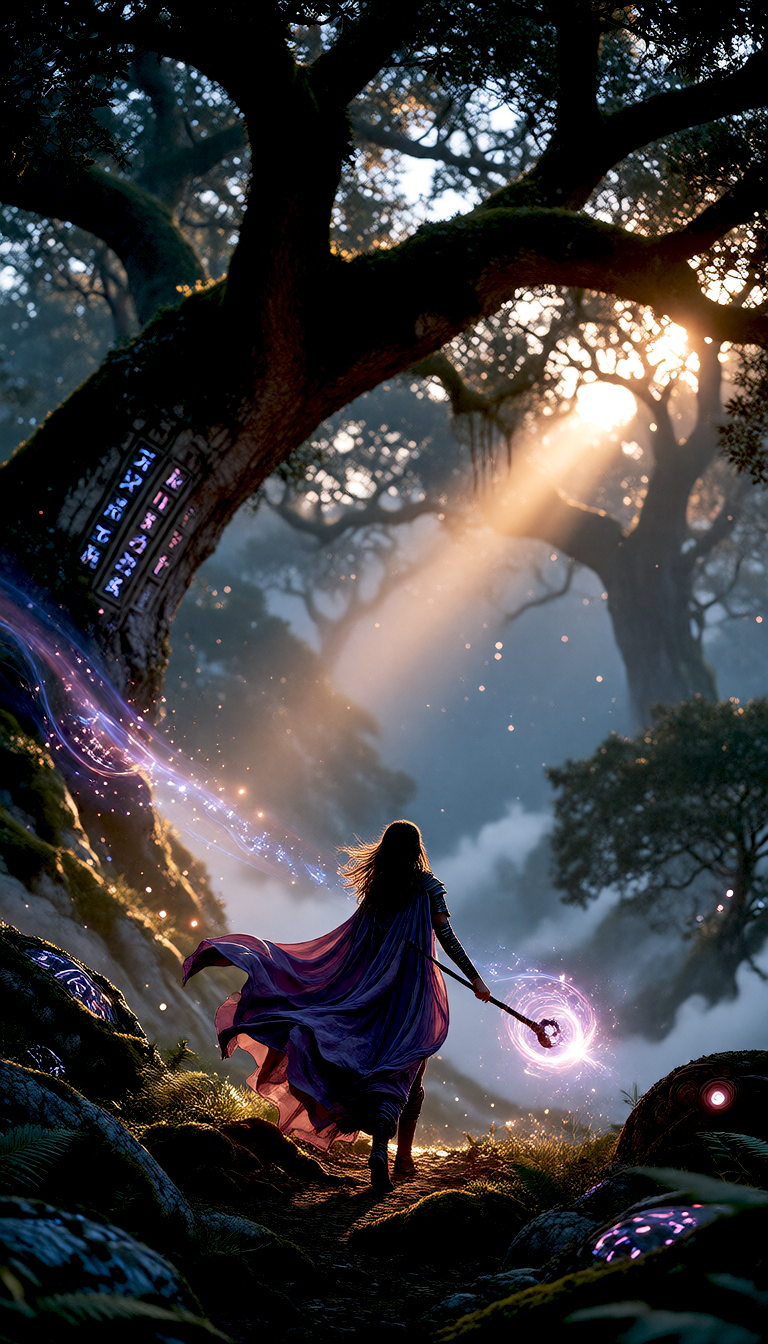
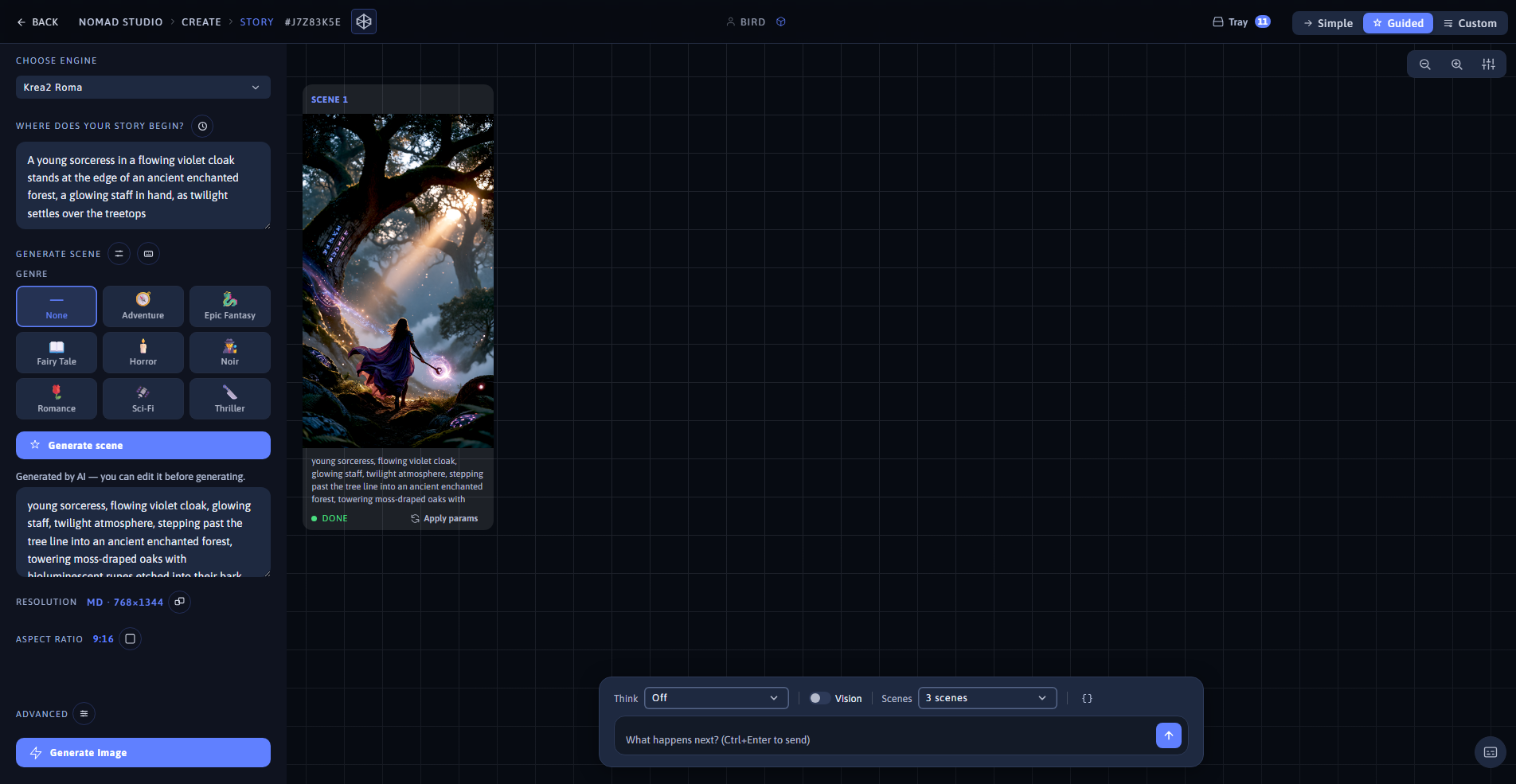
Scene 1 (left) · App at 1920×1080 (right)
Story continues, 3 more turns: "a shadowy figure emerges from between the trees, and the sorceress raises her staff, ready to defend herself" — same character, style and palette carried forward as the plot resolves into a peaceful encounter
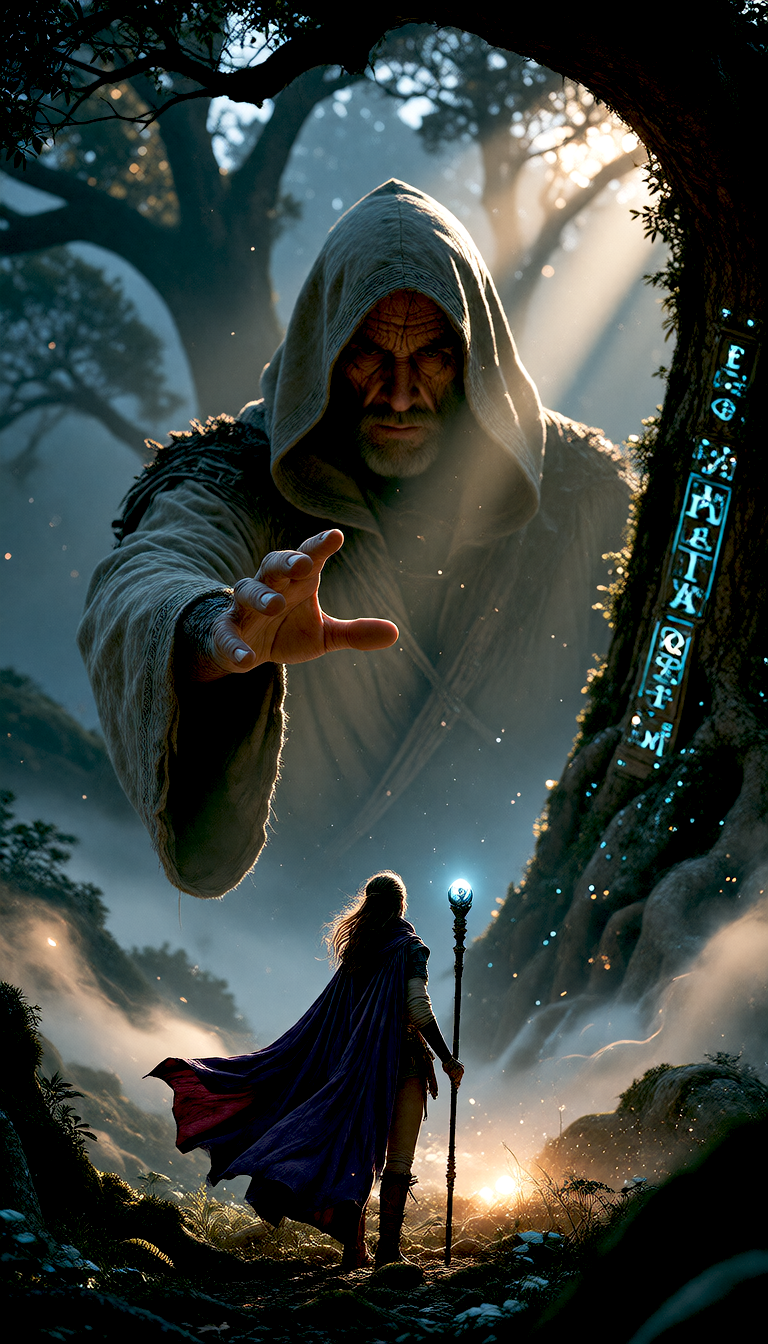
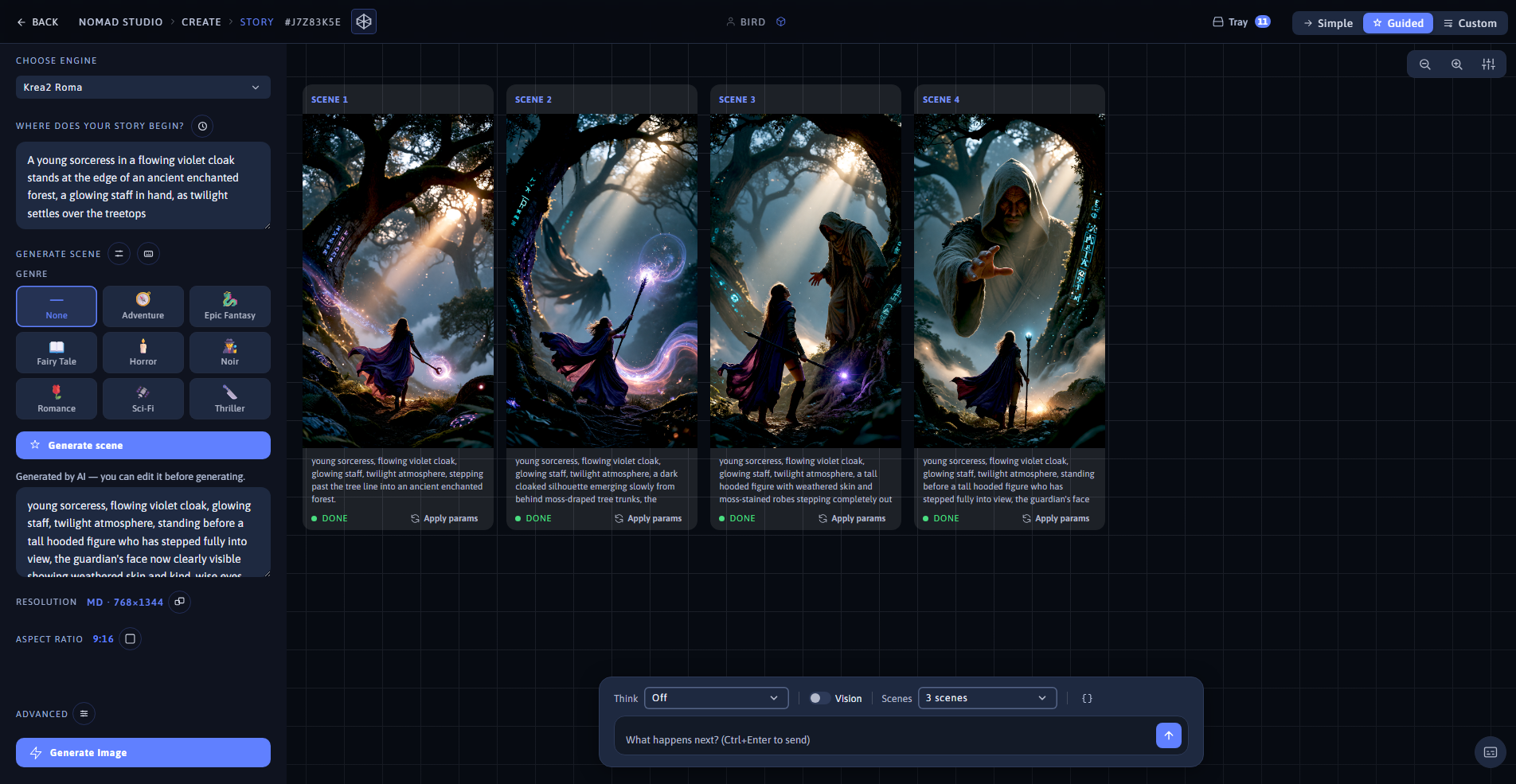
Scene 4, final turn (left) · App showing the full four-scene story timeline (right)