 NOMAD
NOMAD Nomad Studio/ Documentation/ Create/ Chat CivitAI
Create · ConversationalChat CivitAI
Chat CivitAI is Chat's style-locked sibling: you paste a CivitAI generation block once at the start, and its visual style — characters, clothing, colors, lighting, composition — stays fixed as an anchor through every turn of the conversation. Only the content you explicitly ask to change actually changes.
The CivitAI reference can be cleaned up before use (strip out its described elements, characters, or background if you only want the pure style), and there's a one-click "Generate Scene Prompt" shortcut right after setting the scene, so you don't have to wait for the first full loop turn to see a result.
Guided walkthrough
-
Step type: Workflow picker
Choose engine
Pick the imported engine, or auto-selected if you only have one.
-
Step type: CivitAI paste
CivitAI style reference
Required. Comes with optional strip buttons to remove elements, characters, or background from the parsed block before it's used as the anchor.
-
Step type: Prompt input
Set the scene
Describe the initial scene. Confirming it stores the world context for the session. A "Generate Scene Prompt" quick action right here runs a first LLM pass combining your scene with the CivitAI style in one go, without waiting for the main loop below.
Show the exact system prompt for the quick action
You are an image prompt generator for AI image generation. You receive a visual scene description and a CivitAI style reference, and you must write a single comprehensive image prompt.
Rules:
- The prompt must be fully self-contained and detailed enough to generate the image on its own.
- Use the CivitAI style reference as the visual and technical anchor: characters, clothing, colors, lighting style, composition.
- Apply the scene description as the subject and content direction.
- Write in the comma-separated descriptive style used by Stable Diffusion and Flux image models.
- Output ONLY the image prompt text. No JSON, no labels, no explanation.
-
Step type: LLM transform — llm.story_continue
Generate scene prompt
The main loop step. On later turns, takes your change instruction plus the full chat history and the CivitAI style, and writes the next prompt — preserving character, setting and composition style unless told otherwise.
Show the exact system prompt
You are an image prompt generator for AI image generation. You receive a visual scene description and a chat history of previous scenes, and you must write the next single image prompt.
Rules:
- The prompt must be fully self-contained and detailed enough to generate the image on its own.
- Preserve the same characters, setting, and composition style across iterations unless the instruction says otherwise.
- Only change what the user's instruction asks for — keep everything else stable.
- Write in the comma-separated descriptive style used by Stable Diffusion and Flux image models.
- Output ONLY the image prompt text. No JSON, no labels, no explanation.
-
Step type: Prompt input (pre-filled)
Scene prompt
Editable before generating, prefilled by the step above.
-
Step type: Parameter group
Parameters
Seed, steps, CFG, image count.
-
Step type: Action — generation.submit_queue
Generate Image
Sends the scene prompt to the queue; on success it's appended to the session history and the scene counter advances.
-
Step type: Result view
Result
Same timeline view and five actions as Chat: Save, Upscale, Regenerate, Continue story, End story.
-
Step type: Prompt input (loop trigger)
Change the scene
Appears after "Continue story". Spatial, temporal or narrative change — the style stays fixed. Loops back to "Generate scene prompt".
Examples
Style anchor: "elegant woman, cinematic editorial photography, soft golden rim lighting..." + Scene: "a woman standing in an old library filled with towering bookshelves and warm reading lamps" — Krea2 Roma · 16:9
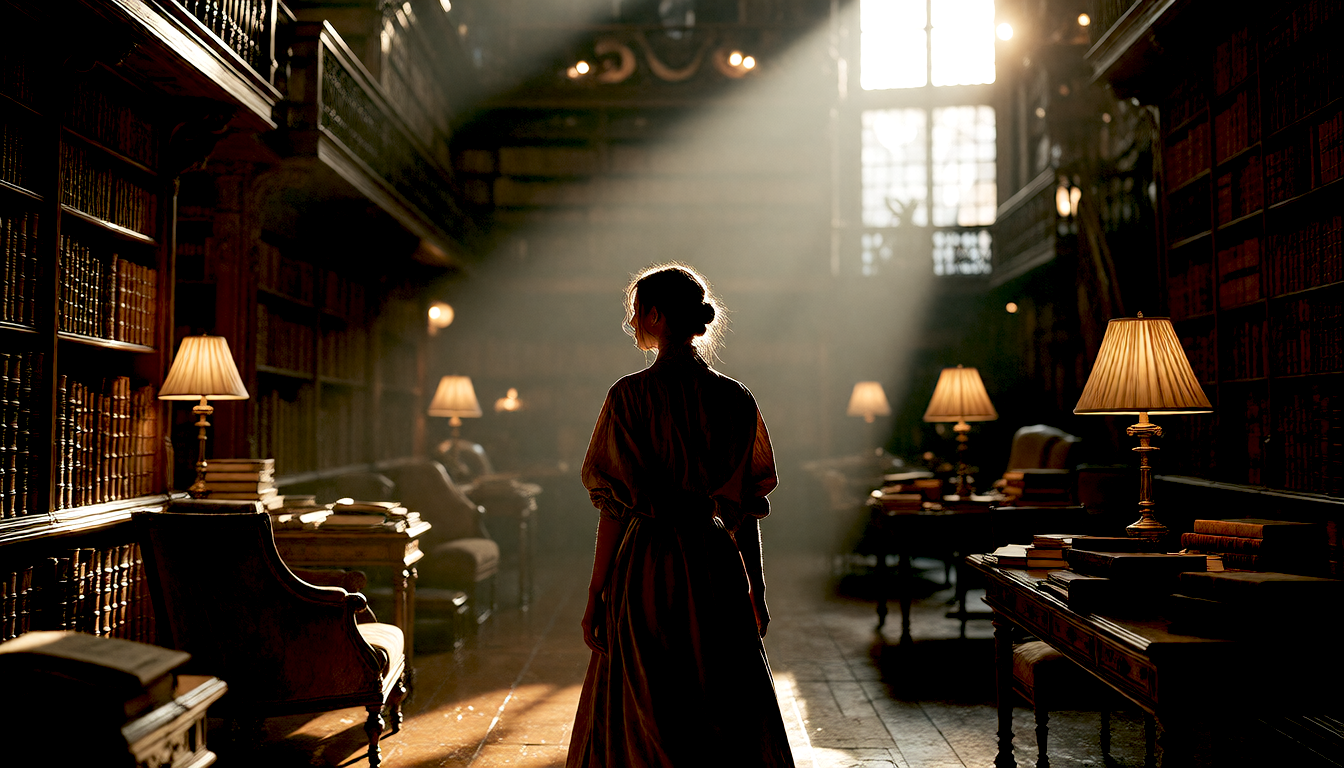
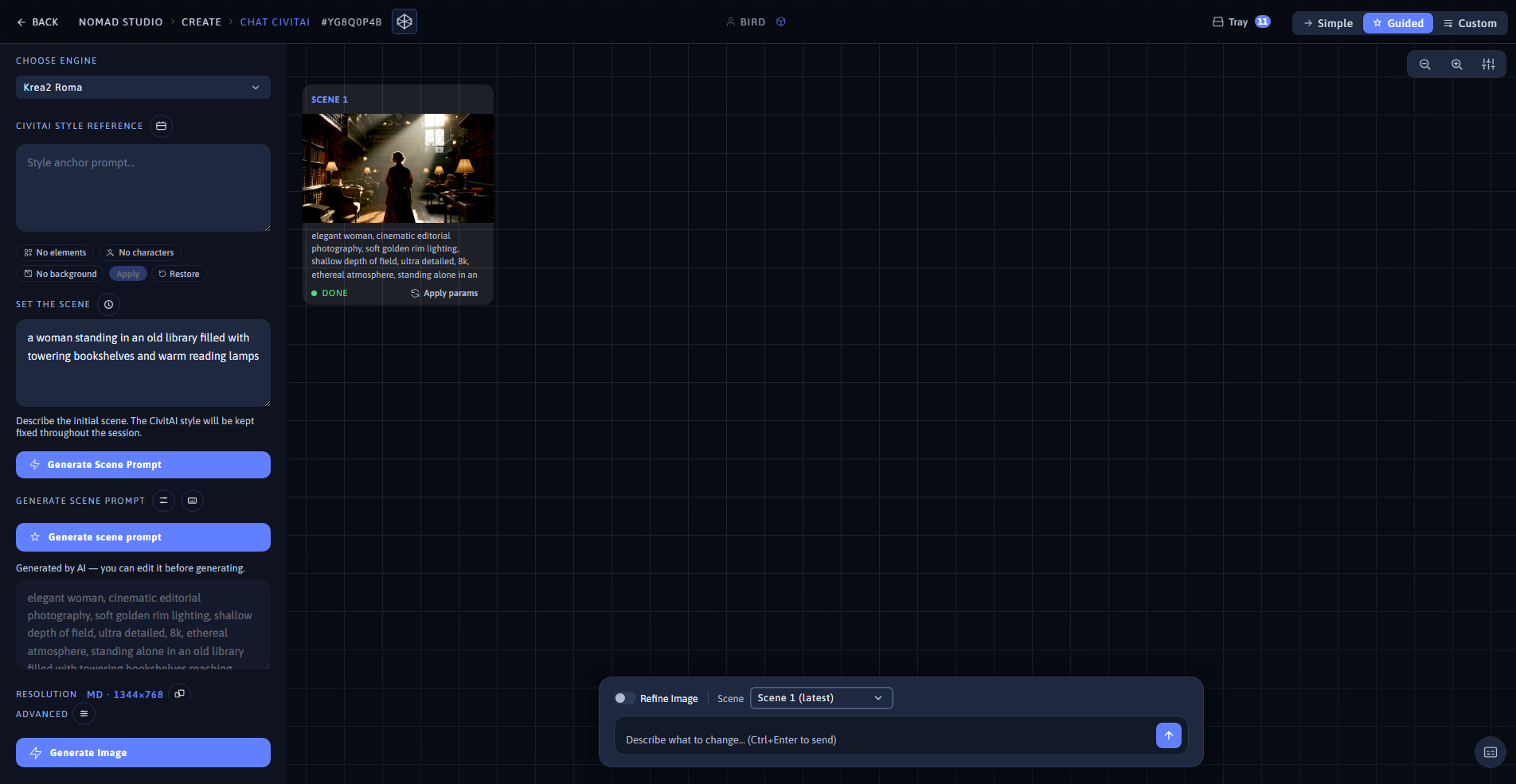
Result (left) · App at 1920×1080 (right)
Continue story: "she closes her book and looks up toward a shaft of moonlight coming through a tall arched window" — same style anchor, turn 2
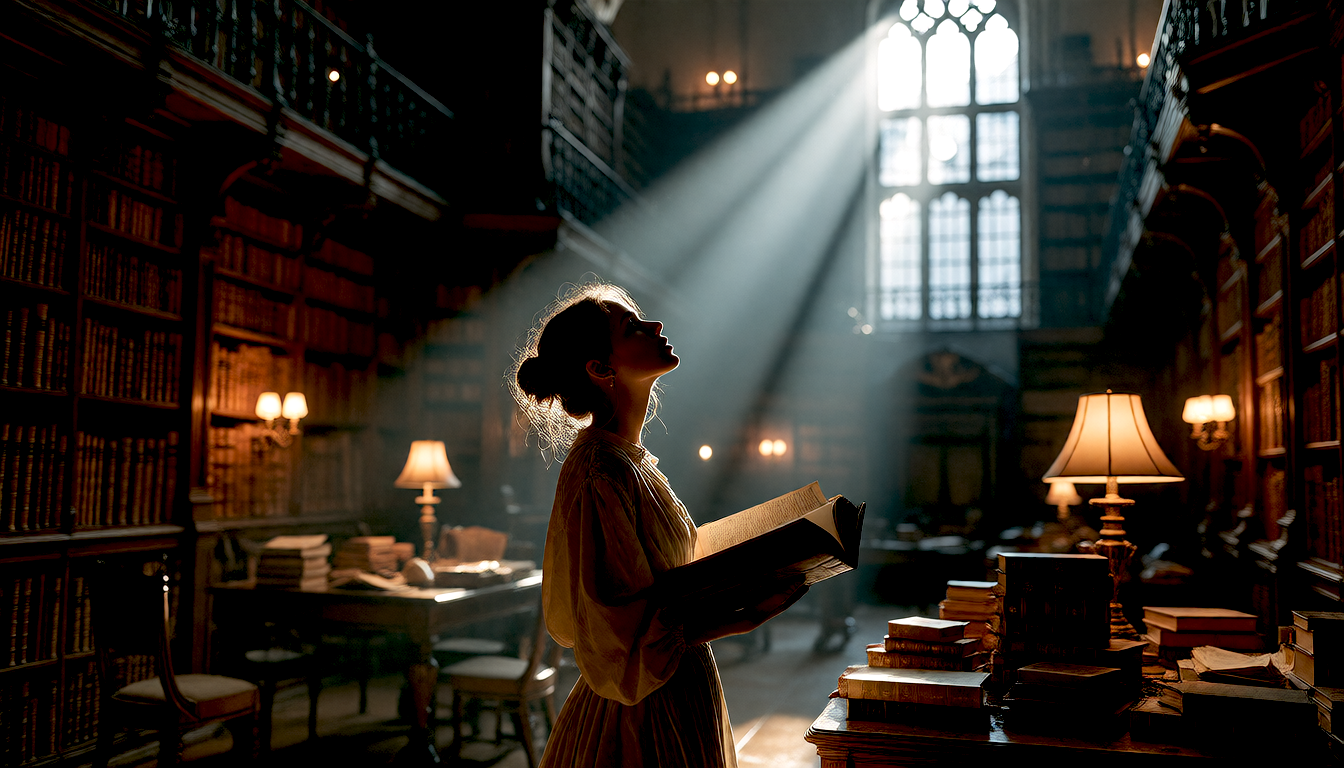
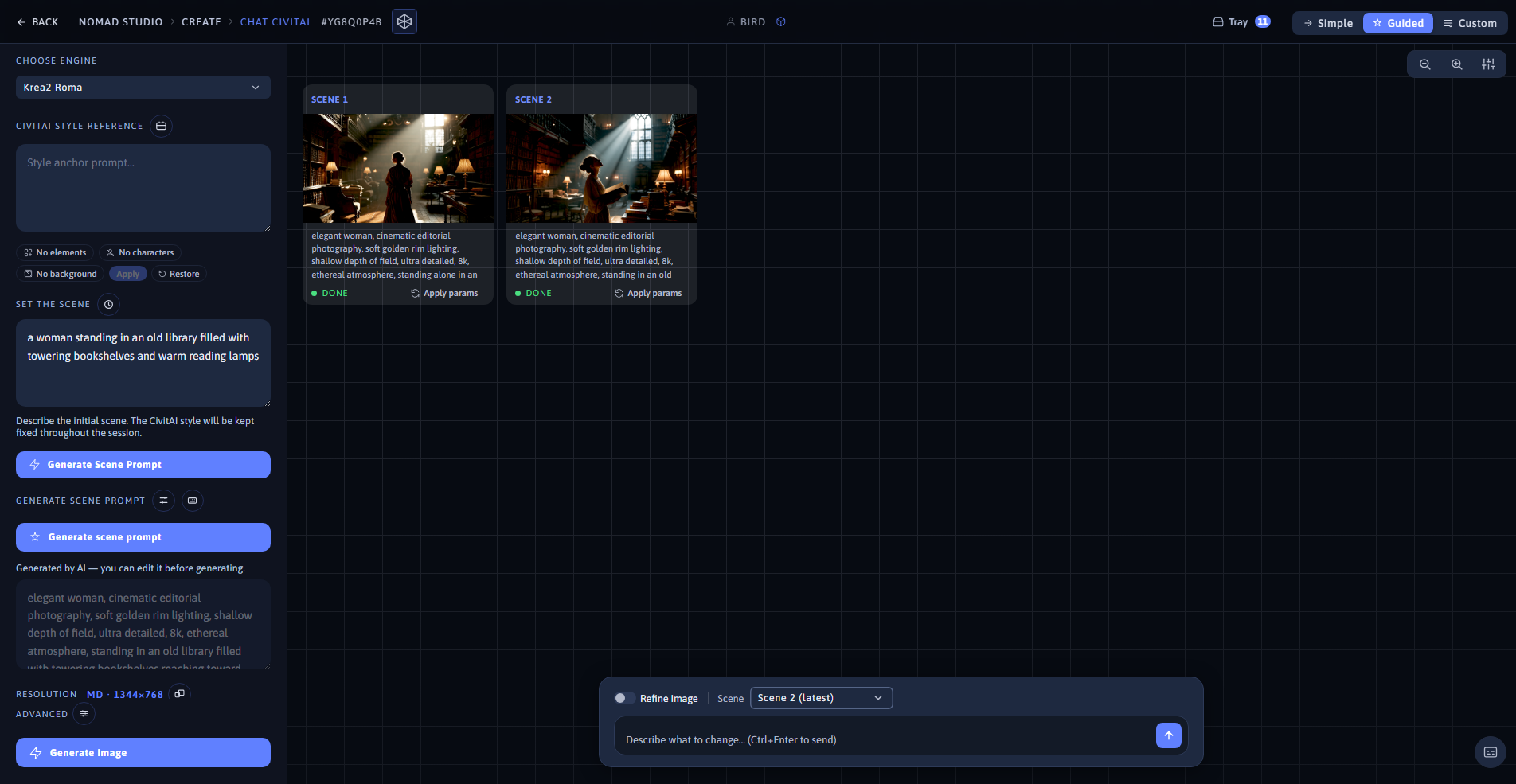
Result, turn 2 (left) · App showing both scenes with the style anchor unchanged (right)