 NOMAD
NOMAD Nomad Studio/ Documentation/ Create/ Layout Lettering
Create · Layout compositionLayout Lettering
Layout Lettering is purpose-built for typography-driven compositions. Instead of describing lettering in free text, you pick its attributes from pill selectors — weight, style, material, effect, integration, colour treatment, era — across up to five named text roles (main title, subtitle, tagline, label, caption). A template string assembles a style description from your picks automatically; you never write the typographic description by hand.
All Layout composition flows share one coordinate system: a normalized 1000×1000 canvas, with each element's bounding box written as [y_min, x_min, y_max, x_max] (origin top-left, y increases downward). The LLM never draws pixels directly — it writes this JSON layout, and the Composition step renders and lets you fine-tune it before generating.
The single most important accuracy rule baked into every depth level: the LLM must copy your literal words verbatim into each element's text field and never invent or paraphrase them — your picks only ever drive the desc/style field, never the actual wording that gets rendered.
Guided walkthrough
-
Step type: Workflow picker
Choose engine
Pick the imported engine, or auto-selected if you only have one.
-
Step type: Prompt input (optional)
Background / scene context
Describes the scene around the lettering — e.g. gritty urban wall; wet concrete texture; golden hour side light.
-
Step type: Lettering builder
Text elements
Required. Seven attribute groups (Weight, Style, Material, Effect — multi-select, Integration, Colour, Era/Vibe) applied per text role. Effect alone has 11 options and can combine several at once (e.g. distressed + drop shadow).
-
Step type: Parameter group
Format
Aspect ratio, seed, steps, CFG, image count — open by default.
-
Step type: LLM transform — llm.ideogram_compose
Compose
Places your fixed text elements plus the optional background into a full layout, at the chosen depth (Quick → Master). Your literal text is always preserved verbatim — only its visual treatment and placement come from the LLM.
-
Step type: Ideogram composer
Composition
Review and fine-tune the placed layout before generating.
-
Step type: Action — generation.submit_queue
Generate Image
Sends the composed layout to the queue.
-
Step type: Result view
Result
Save, Upscale, Send to Refine, Regenerate.
Examples
Text: "ELEGANCE" — bold, script, gold foil, embossed, gradient, vintage — background: "elegant marble ballroom wall; soft golden chandelier light; deep navy velvet drapes" — Ideogram 4 · 9:16
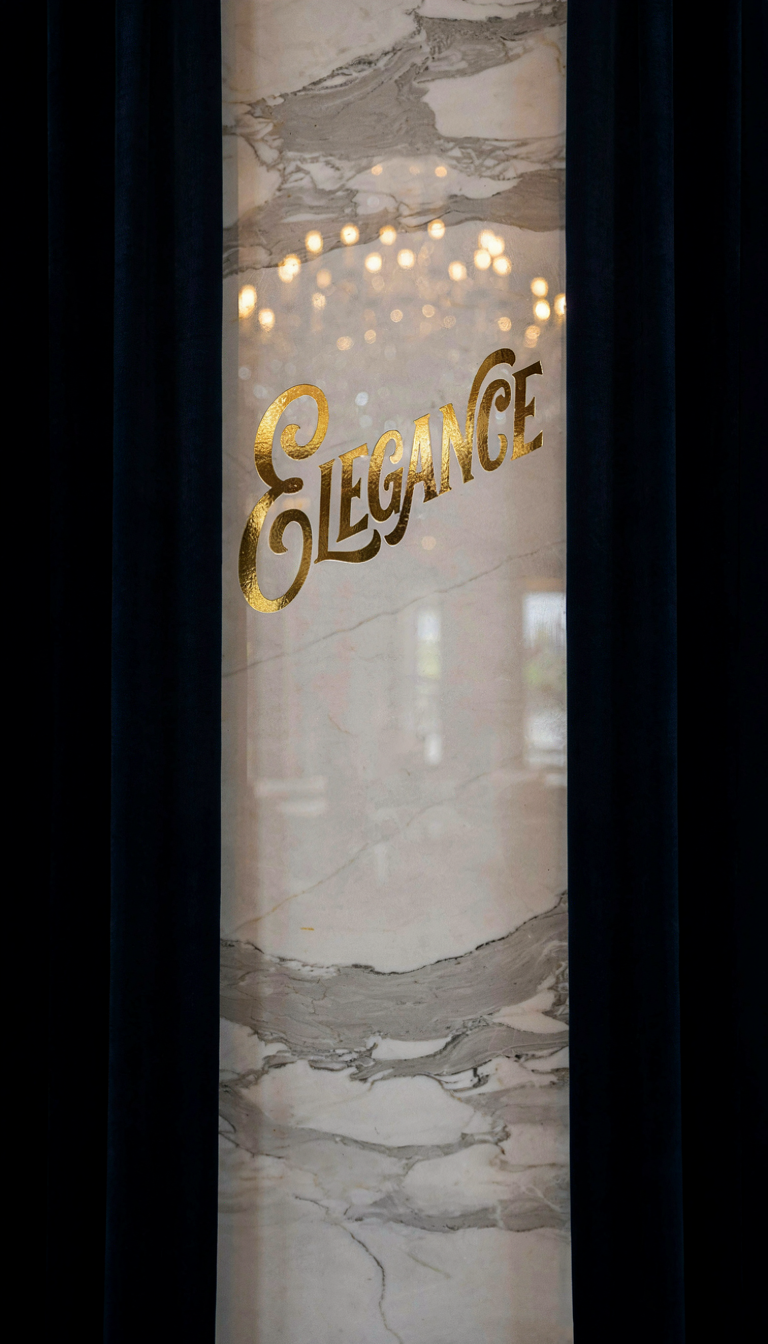
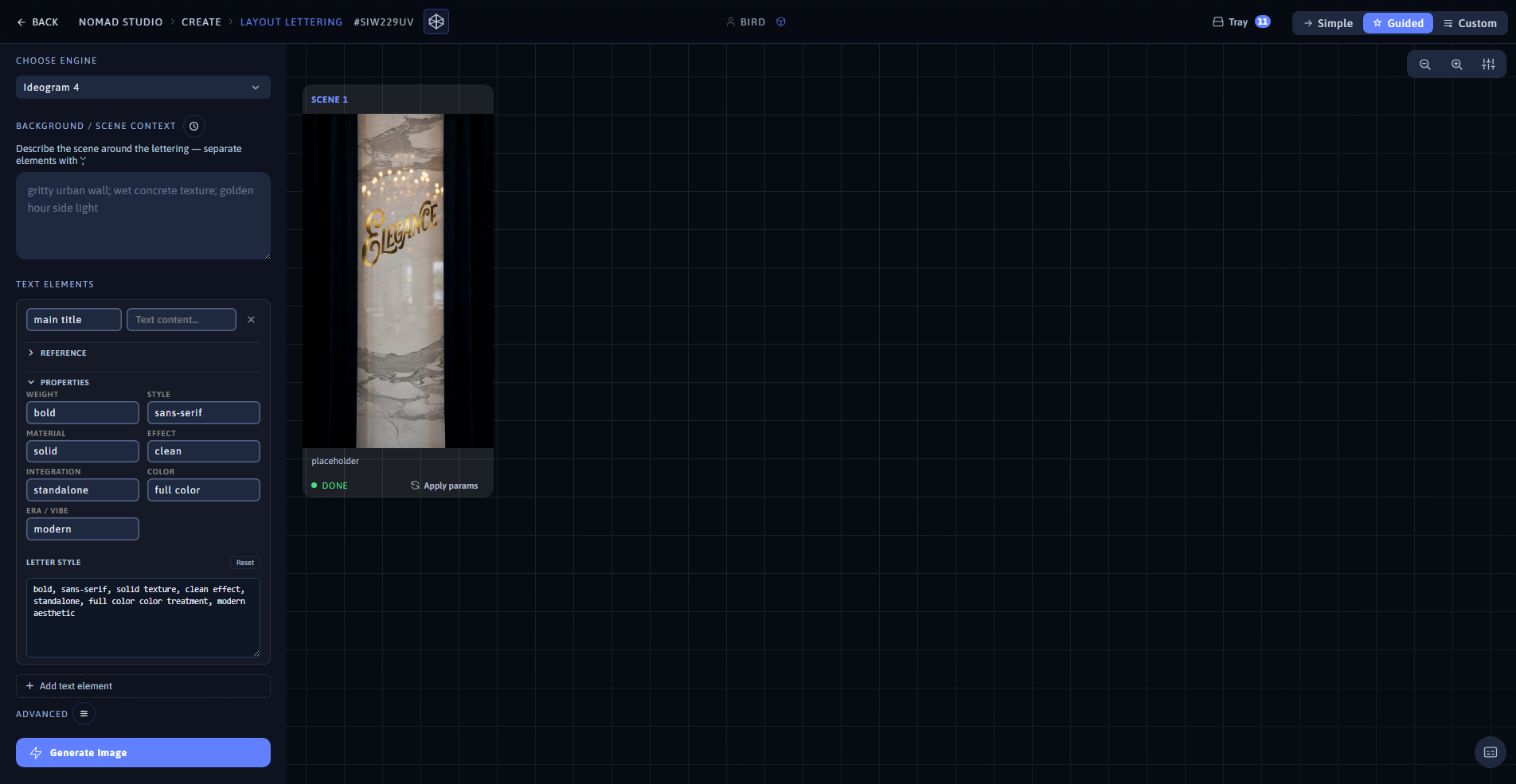
Result (left) · App at 1920×1080 (right)
Text: "SERENITY" — bold, serif, ink, outlined, monochrome, modern — background: "elegant woman in a flowing white silk dress standing in a sunlit lavender field, soft breeze" — Ideogram 4 · 16:9
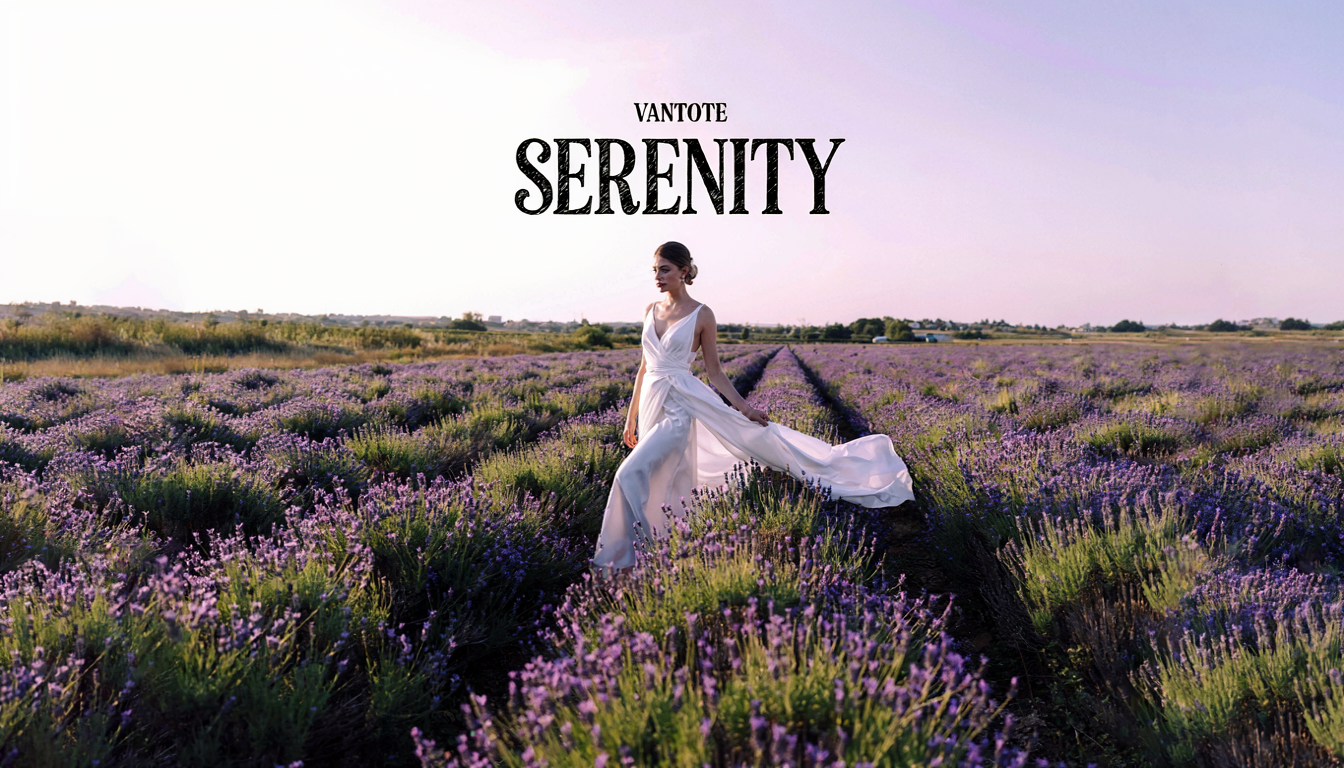
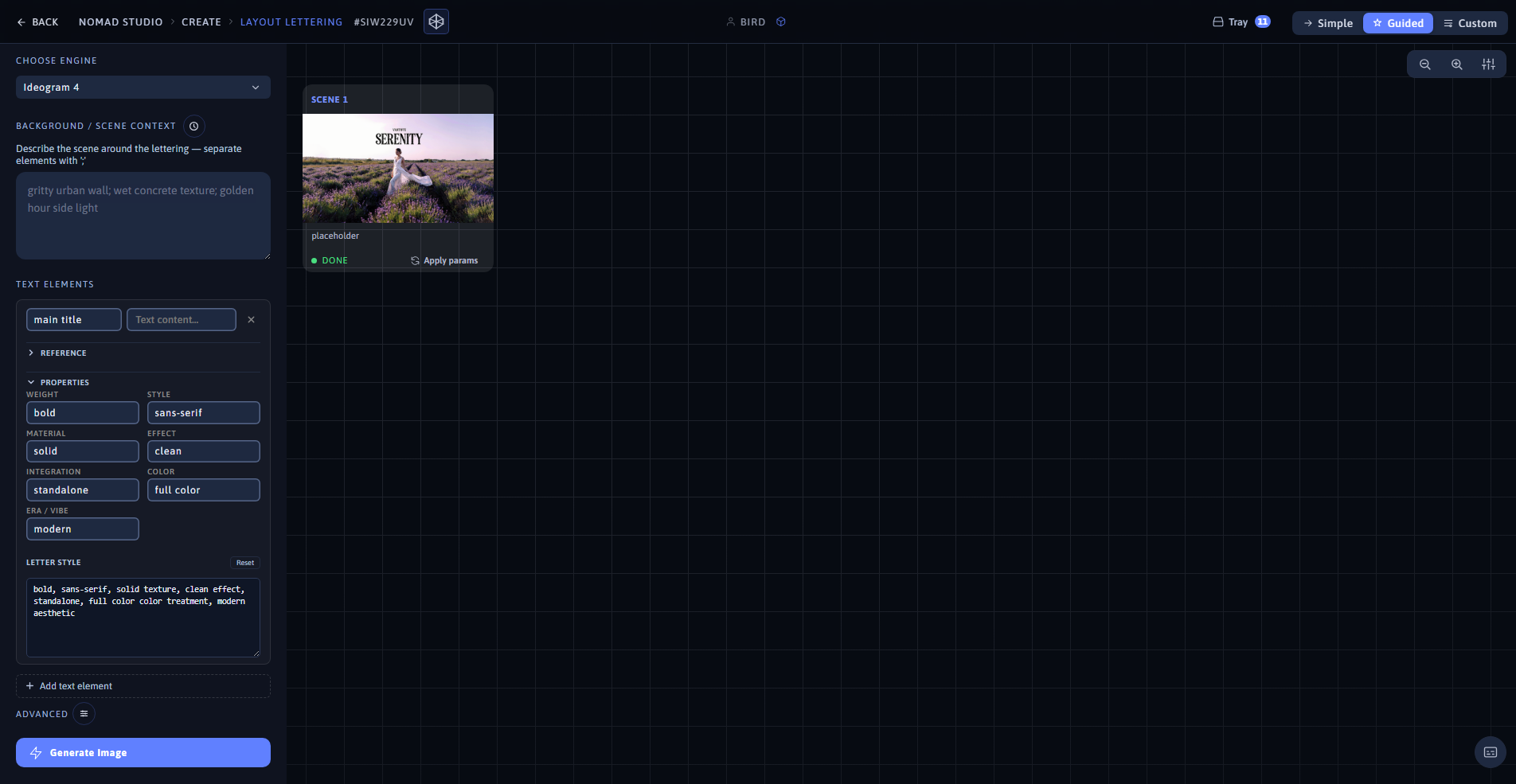
Result (left) · App at 1920×1080 (right)