 NOMAD
NOMAD Nomad Studio/ Documentation/ Create/ Chat
Create · ConversationalChat
Chat is a looping flow, not a one-shot one. You write or paste a starting prompt, generate, then keep evolving the same scene turn by turn with short instructions — "move to the right", "it starts raining", "make it night". Each turn the LLM rewrites the prompt to apply just your instruction, preserving everything else, and the whole session is remembered (a running chat history and a scene index) so the result view can show it as a timeline.
Reach for it when you want to iterate on one scene rather than generate unrelated one-offs — the LLM always has the previous prompt as its starting point, so "the same but at night" actually stays the same except for the light.
Guided walkthrough
-
Step type: Workflow picker
Choose engine
Pick the imported engine, or auto-selected if you only have one.
-
Step type: Prompt input
Your starting prompt
Your opening prompt. Confirming it stores it as the session's world context, which stays available to every later turn.
-
Step type: LLM transform — llm.story_continue
Update scene prompt
On the first turn, takes your starting prompt as-is (only cleaning up formatting if it's already complete). On every later turn, takes your change instruction plus the full chat history and applies just that change — same Level/Flair controls as Assist.
Show the exact system prompt
You are an image prompt generator for AI image generation. You receive a prompt or an instruction to change the current scene, along with the history of previous prompts.
Rules:
- The prompt must be fully self-contained and detailed enough to generate the image on its own.
- On the first turn (no chat history), if the input is already a complete image prompt, return it with minimal or no changes — only clean up obvious formatting issues.
- On subsequent turns, apply the user's instruction to the last prompt in the history. Preserve characters, setting, and style unless the instruction says otherwise. Only change what is asked.
- Write in the comma-separated descriptive style used by Stable Diffusion and Flux image models.
- Output ONLY the image prompt text. No JSON, no labels, no explanation.
-
Step type: Prompt input (pre-filled)
Scene prompt
The AI's rewritten prompt for this turn, fully editable before generating.
-
Step type: Parameter group
Parameters
Seed, steps, CFG, image count.
-
Step type: Action — generation.submit_queue
Generate Image
Sends the scene prompt to the queue. On success, the prompt is appended to the session's chat history and the scene counter increments — this is what makes the next turn aware of it.
-
Step type: Result view
Result
Shows the current scene number and a horizontal timeline of the whole session so far. Five actions:
- Save, Upscale — as usual.
- Regenerate — same prompt, new roll.
- Continue story — opens the next step to keep evolving the scene.
- End story — closes the session.
-
Step type: Prompt input (loop trigger)
Change the scene
Appears only after clicking "Continue story". Describe what should change — everything else stays the same. Submitting it loops back to the "Update scene prompt" step above, and the cycle repeats for as many turns as you like.
Examples
Starting prompt: "an elegant woman in a flowing sapphire blue dress standing at the edge of a lavender field at golden hour, wind gently moving the fabric" — Krea2 Roma · 9:16

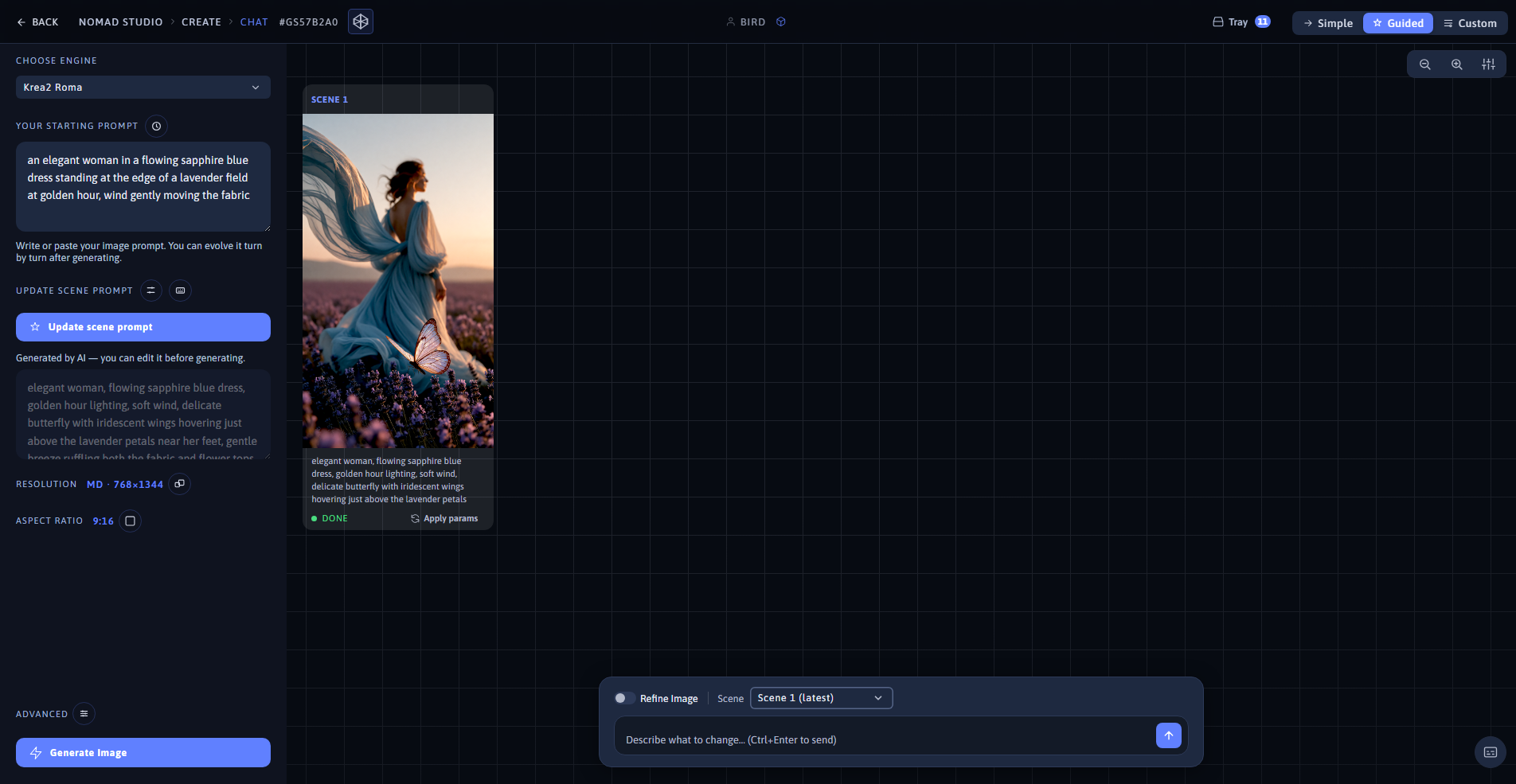
Result (left) · App at 1920×1080 (right)
Continue story: "it starts snowing gently and the lavender field becomes a snow-dusted winter meadow" — same session, turn 2
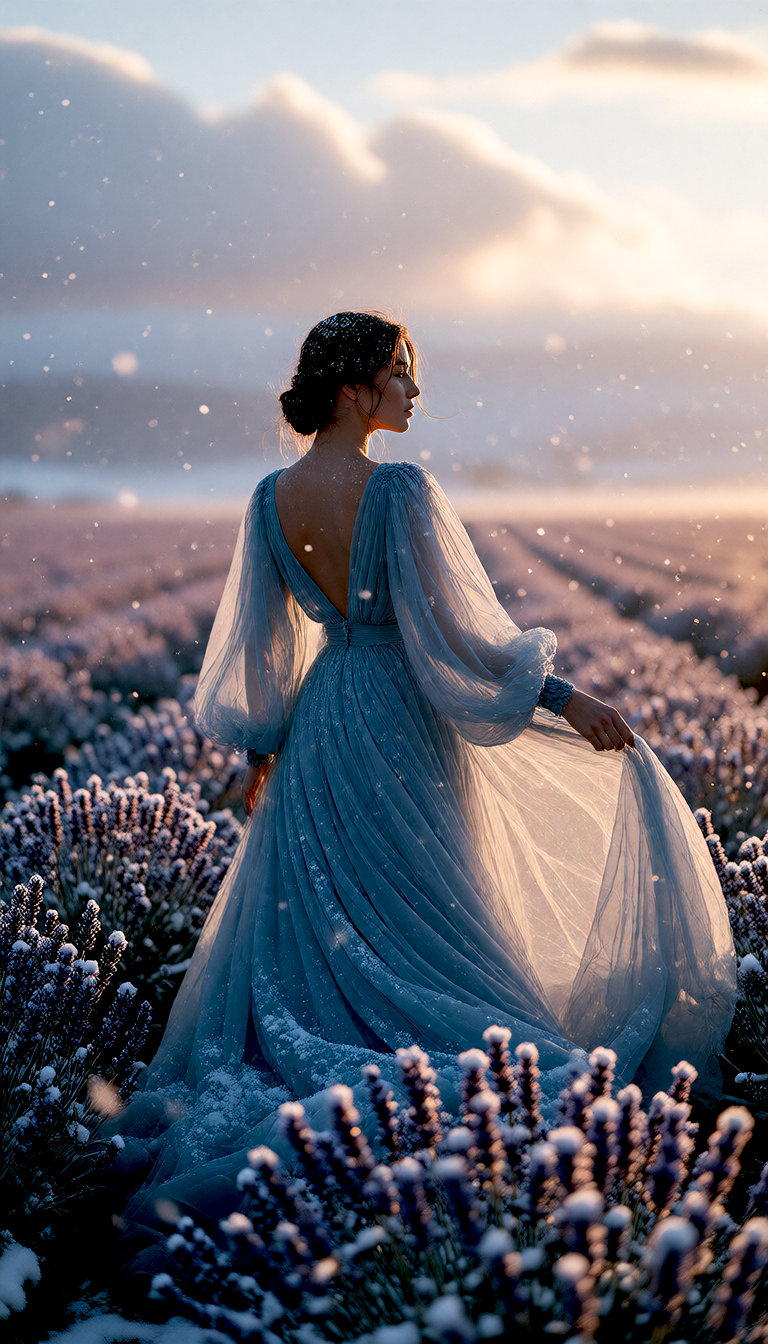
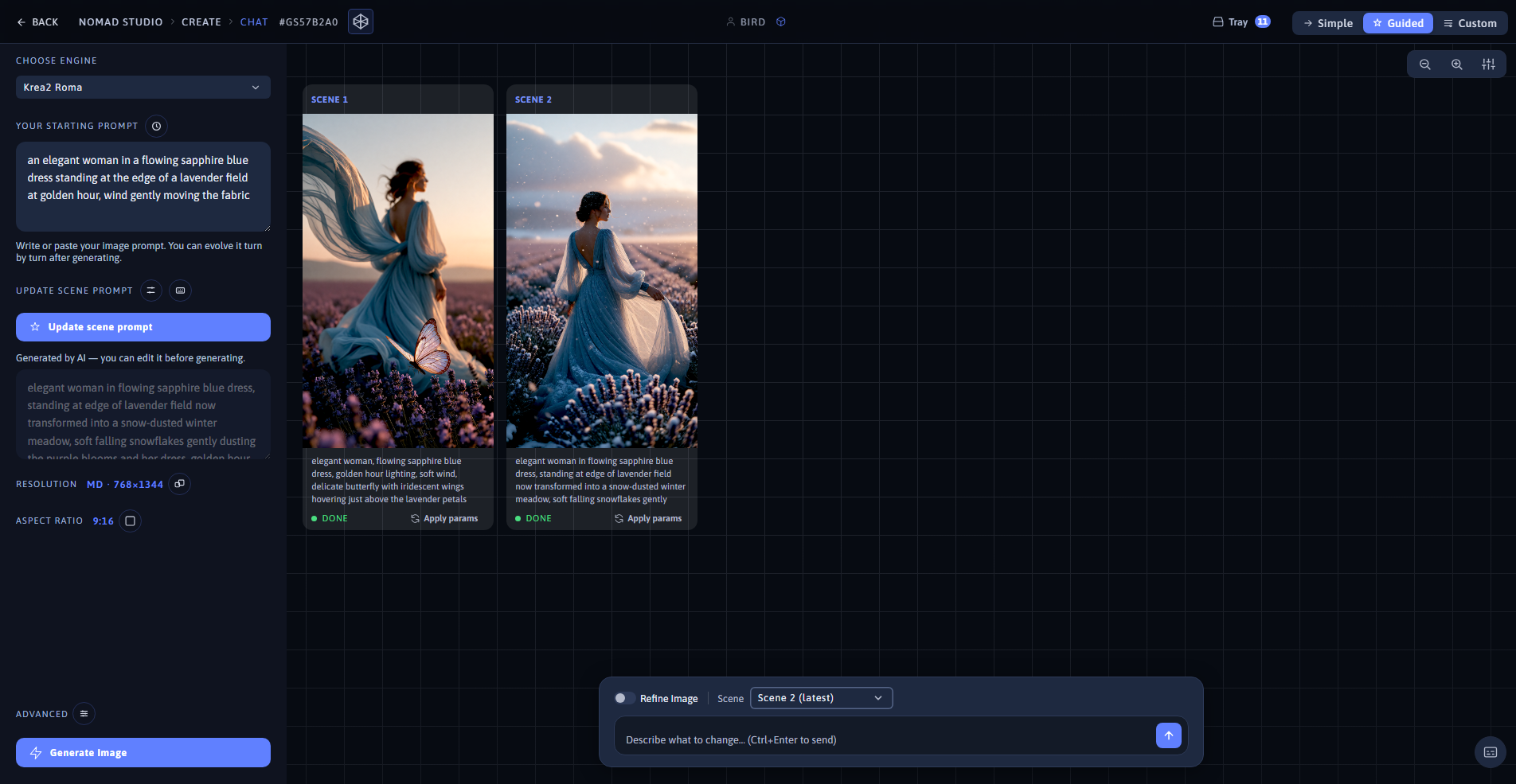
Result, turn 2 (left) · App showing the full scene timeline at 1920×1080 (right)