 NOMAD
NOMAD 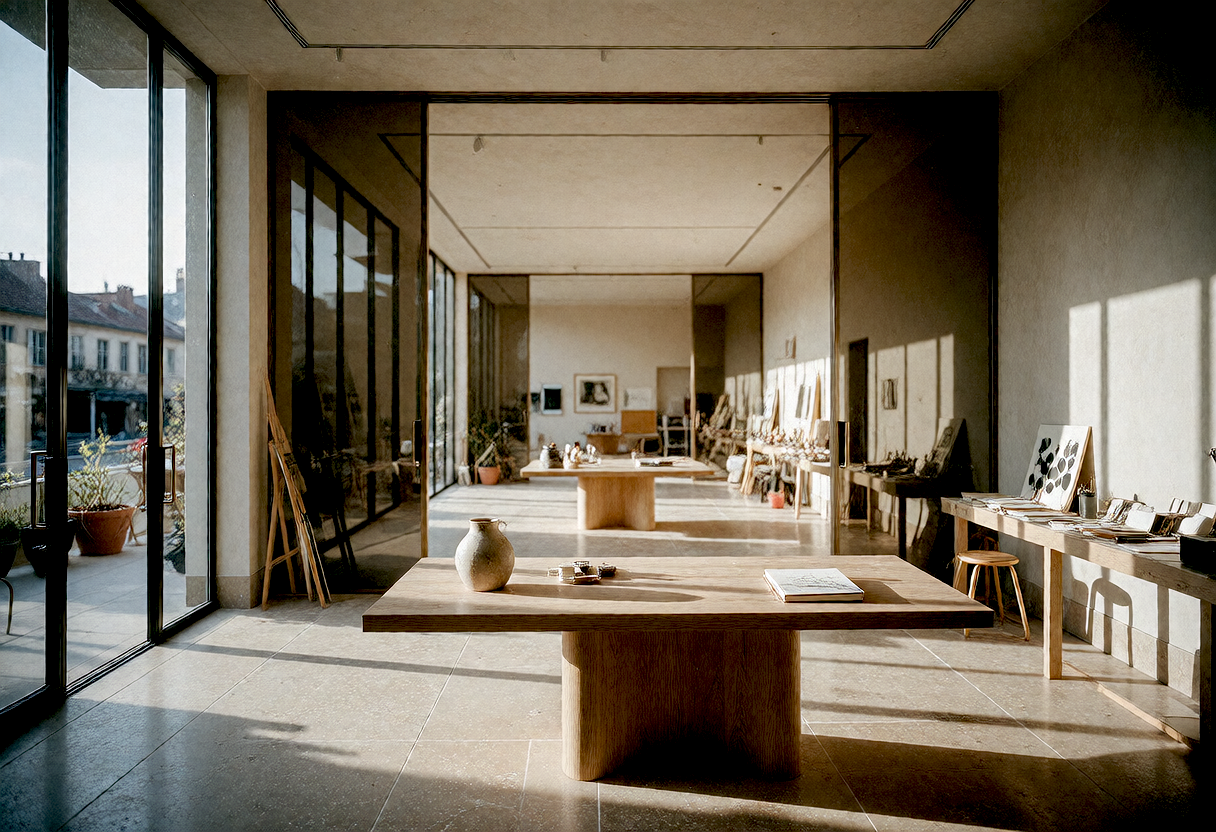
8 GB VRAM
For step-by-step tasks and quick testing. Rely exclusively on compact models (4B to 9B in Q4) to keep memory headroom clear.
4B – 9B Q4 models · Single model loaded
Bring in the workflows you love, add useful tools and connect an assistant when you need one. Extend Nomad Studio around the way you create.
Already have a ComfyUI workflow? Bring it into Nomad Studio and use its supported controls in a familiar panel.
Available controls depend on the workflow. Its models and required components must be installed in your ComfyUI environment.
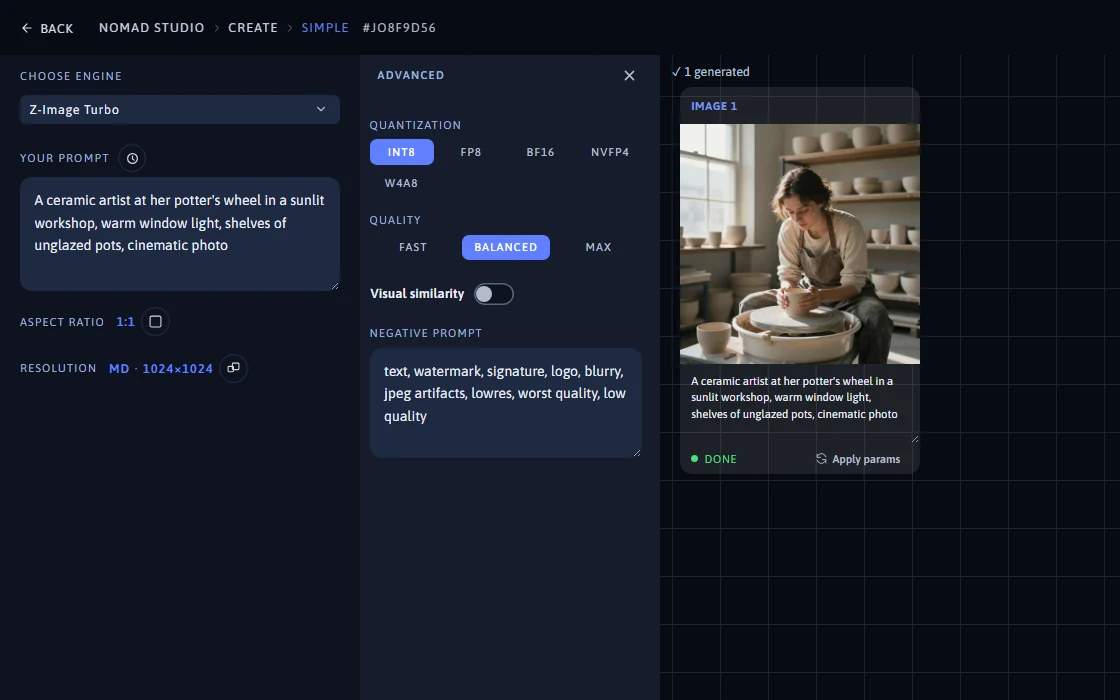
Drop in a ComfyUI graph and the analyser reads it — prompt nodes, samplers, seed and noise inputs, latents, guiders, checkpoint and UNET loaders, CLIP last-layer nodes, image loaders, LoRA loaders. You get a parameter panel, not a text box full of JSON.
ComfyUI's API export flattens subgraphs. Nomad Studio infers their boundaries back from the "parentId:childId" ID convention. When exactly one external input of the same type can stand in for a subgraph's output, that subgraph becomes an automatic on/off toggle — an "optional part" — with the rewiring precomputed.
LoRAs are inserted into an imported graph through a sentinel key (<unet_node_id>.__insert_lora), then normalised and extracted again from the UI's LoRA tree — with a catalogue that pulls identifiers, details and previews from CivitAI.
If a workflow runs in your ComfyUI, it runs in Nomad Studio: the studio uses the same GPU and the same models. These are rough guides by card memory.
For step-by-step tasks and quick testing. Rely exclusively on compact models (4B to 9B in Q4) to keep memory headroom clear.
The golden standard for the full studio. Run your image generator and 9B assistant models side by side with zero lag.
For intensive production: huge ComfyUI graphs, dense 14B to 27B models, multi-LoRA stacks, and ultra-high resolutions.
Turn an image into pixel art, remove a coloured background or combine images. Add-ons bring more ways to work into your studio.
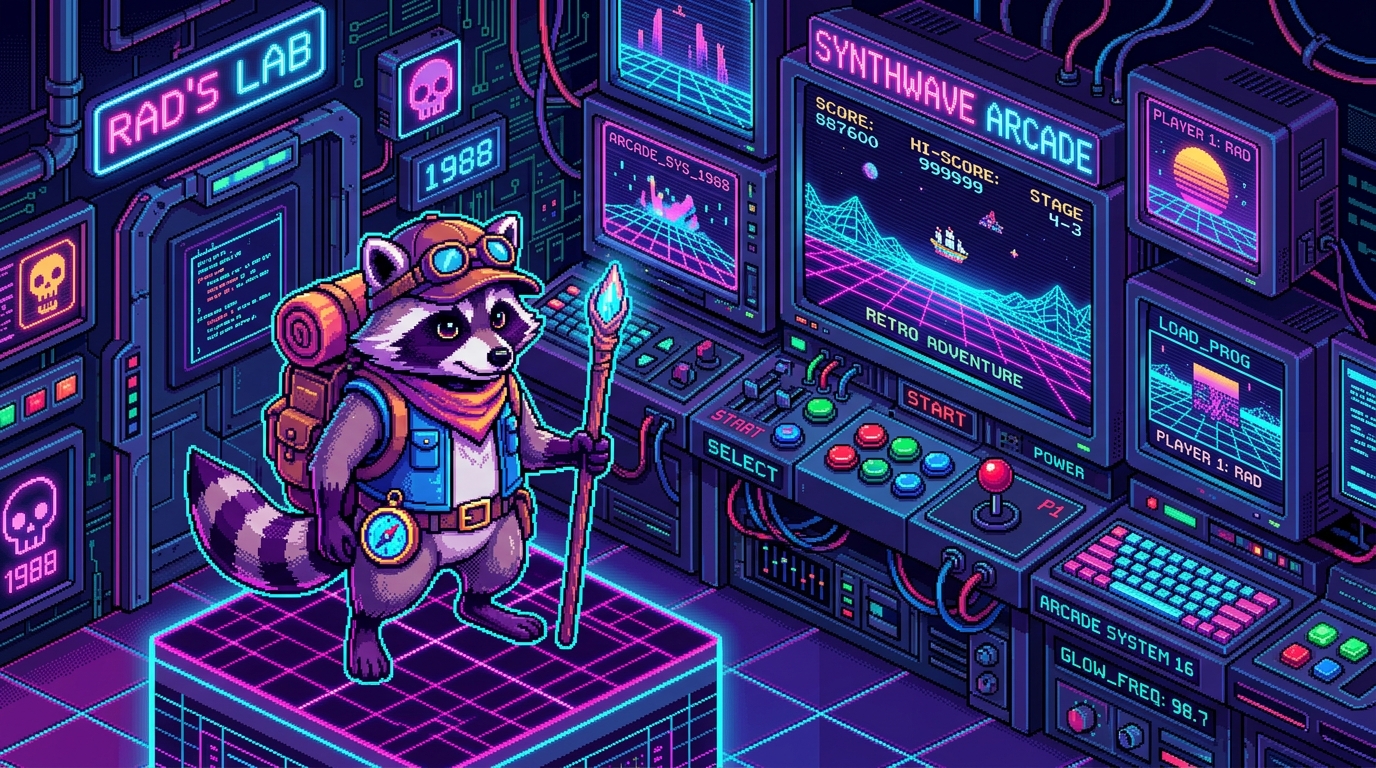
Turn images into pixel art.
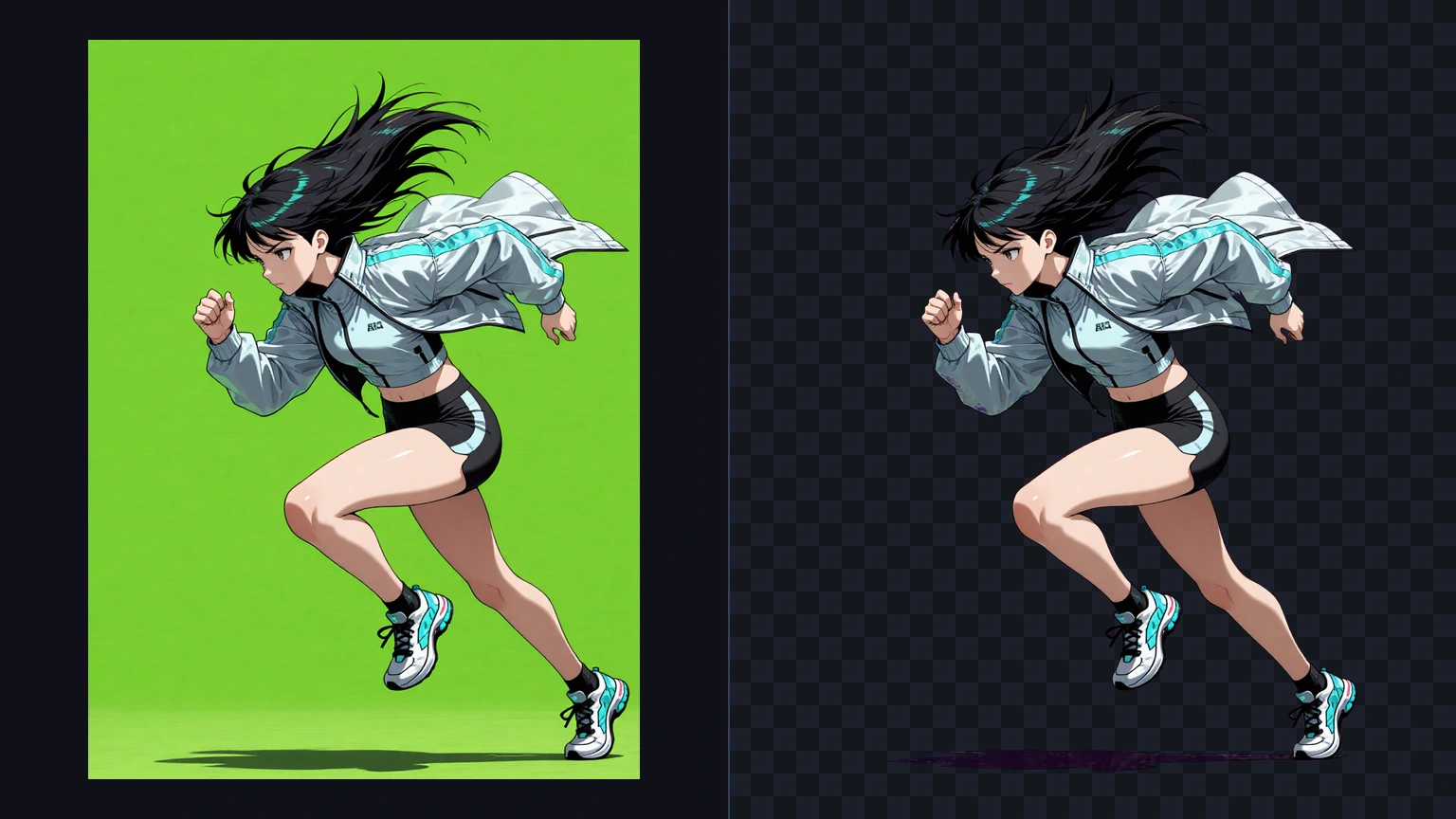
Remove a background by colour.
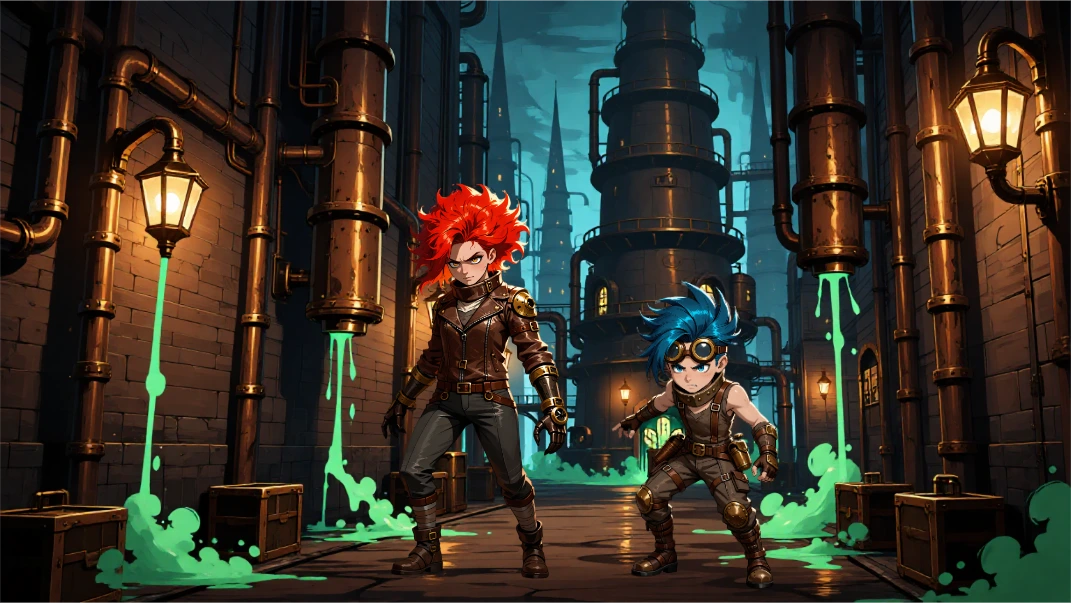
Combine and position images on a canvas.
The add-on system is modelled on Blender's: each one lives in its own folder with its own Flask blueprint, service layer and flow definition. Install, remove or update without touching a single line of core code.
Any image to pixel art via KMeans colour quantisation. Auto-detects grid size, reduces the palette, scales up to 8×. No GPU, no ComfyUI.
Remove a solid or vignetted background by colour, with despeckle, feathering and edge decontamination.
Strips residual background-colour bleed from the semi-transparent edge of a cutout without altering the alpha shape.
Composites a movable, scalable overlay onto a background image on a real canvas.
All four are 100% local NumPy/SciPy — they run with ComfyUI switched off.
Connect Claude Desktop, ChatGPT, Antigravity or Bionic, describe your idea and ask for changes. Nomad Studio runs the image work on your local setup.
Image processing runs locally. The connected assistant may use a cloud service, depending on your setup.
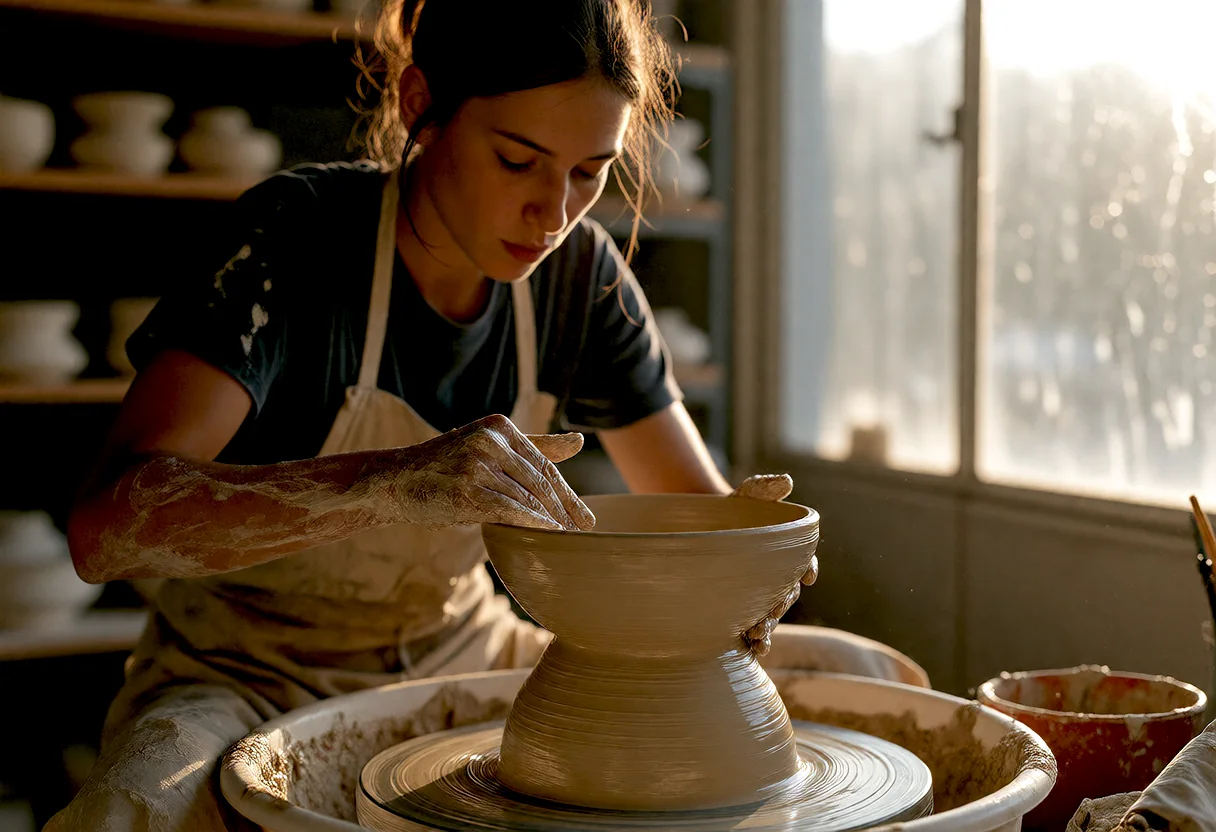
“Make me a photo of a ceramic artist at her wheel, in a workshop with the sun coming in.”
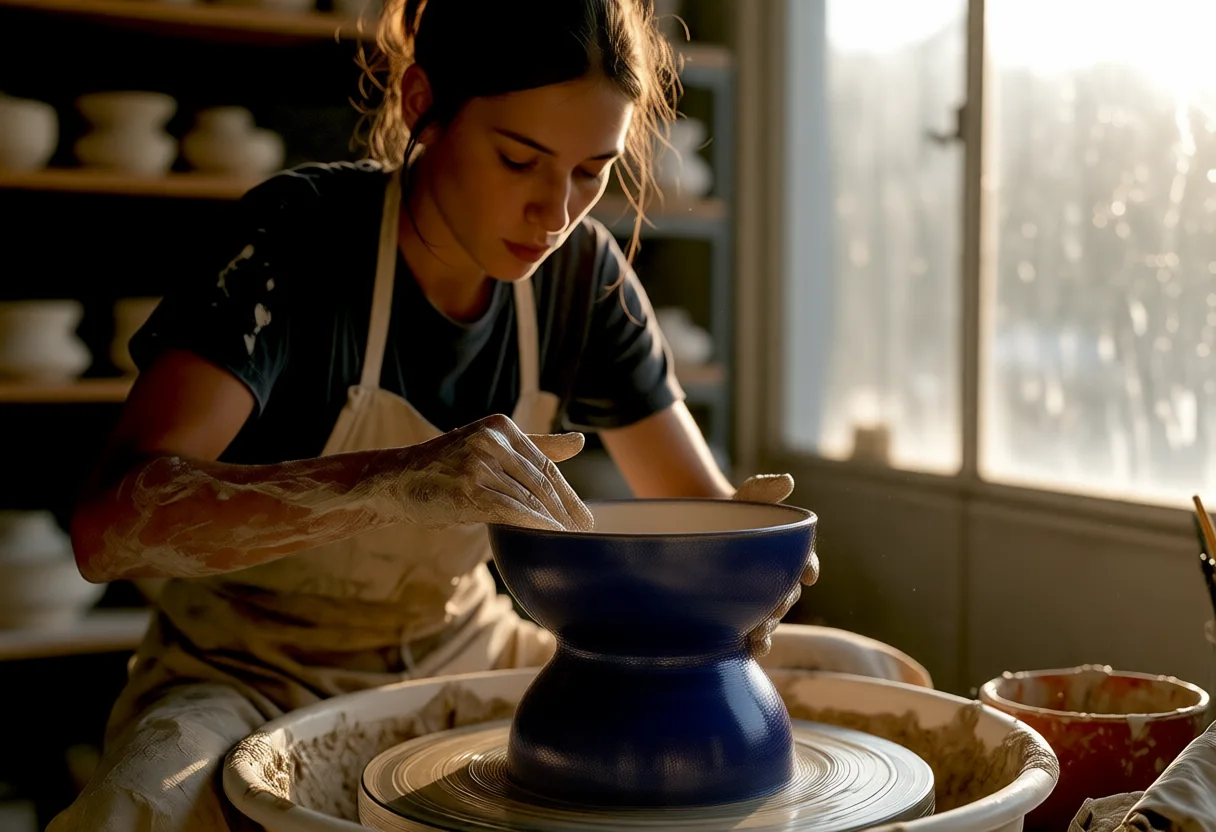
“Now make the bowl deep blue and glossy. Leave everything else alone.”
“Pull back a bit, I want to see more of the workshop.”
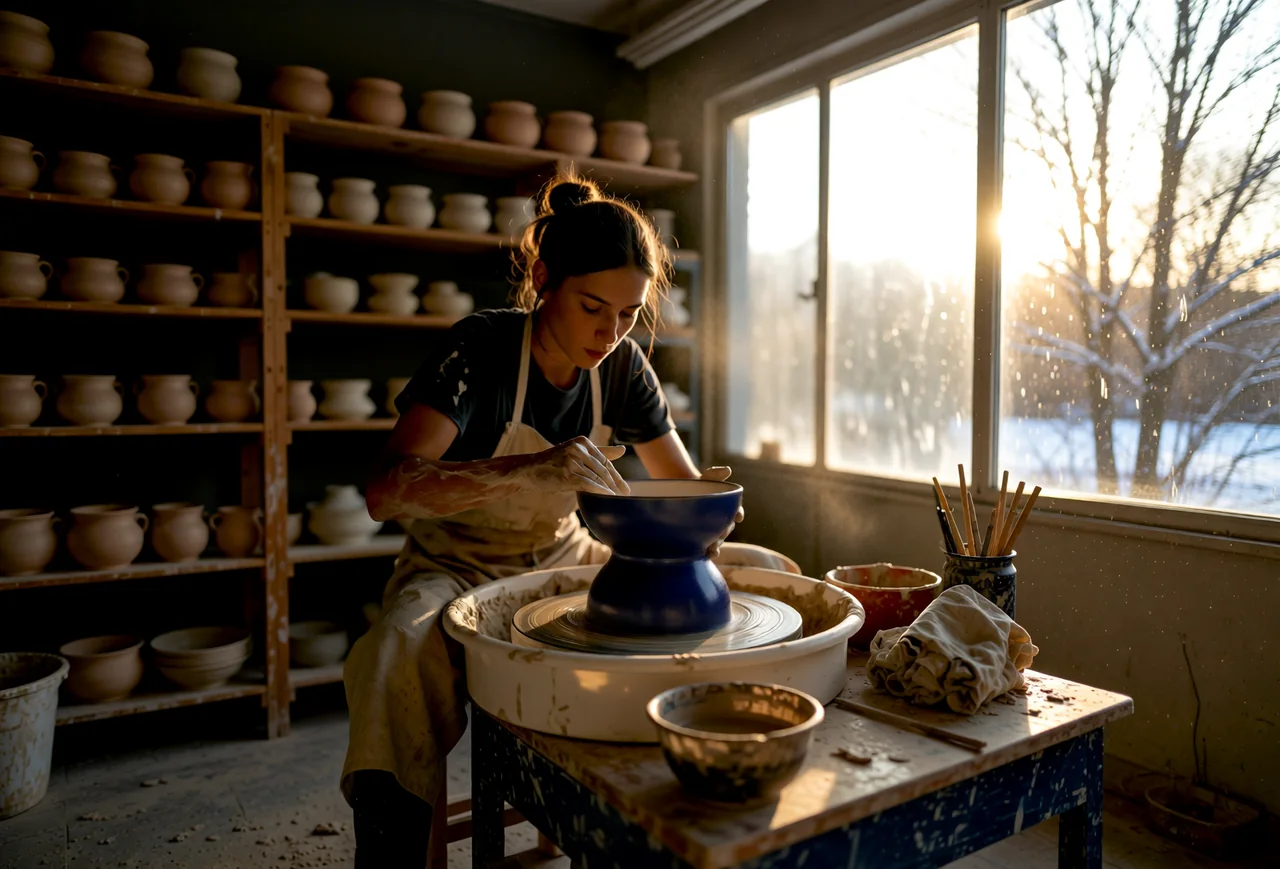
Three turns of one real conversation. The third one never named a file — “pull back” was enough, because the assistant is still holding the picture it just made for you.
The assistant fills these in from your own words — “wide, best quality, with Monaco” is enough. You can also set them yourself.
For example
| Parameter | Shortcut | Values | If left out |
|---|---|---|---|
| prompt | — | Description of the image, ideally in English. Required. | — |
| aspect_ratio | --ar 16:9 | square · landscape · portrait · wide · tall | Reuses your last choice in the conversation, or asks you |
| speed | --q max · --draft | fast · balanced · max | Reuses your last choice in the conversation, or asks you |
| model | --v monaco · --anime | Any model you have installed, by its short name or part of its name | Reuses your last choice, or asks; with only one model installed, uses it |
| quantization | --quant int8 | The variants your model offers (fp8, int8, bf16…) | Picked from speed |
| steps | --steps 20 | Steps, 1 to 150 | The model's own value |
| width / height | — | Exact pixels, both together, rounded to multiples of 64 | The size of aspect_ratio |
| negative | --no people, text | What must not appear | The model's default negative |
| seed | --seed 1234 | A number, to repeat or vary an image | Random |
| count | --r 4 | 1 to 4 images per request | 1 |
Typed at the end of the prompt. They win over everything else.
| Tool | What it does | Main parameters |
|---|---|---|
| Refine | Edits one image with any Refine flow you have installed: relight, remove the background, upscale, retouch, colour looks, change the text inside the image… | action, instruction, regions (marked zones); for outpaint: position, scale, expand_percent |
| Mix | Combines several images into one: a subject onto a background, several references into one scene, the style of one image onto another | action, images (each in its slot), instruction, aspect_ratio, seed |
| Sessions | Lists and reads your sessions and saves what it makes as new steps; from then on every image lands there by itself | session_id or a new name, keep_adding |
| List models and actions | Tells the assistant what you actually have installed, so it never invents a name | — |
| Last generation | Recalls the prompt, seed, model and size of the latest image | — |
Which Refine and Mix flows appear depends on the packs you have installed.
Technical references are here when you need them. You do not need to read them to explore what Extend offers.
A flow is a JSON file listing steps. A new step type becomes available to every flow at once, so the studio grows with the packs you add without the interface fragmenting.
| Step type | What it does |
|---|---|
| workflow_picker | Choose among your active imported workflows; auto-selects and skips itself when there is only one |
| prompt_input | Text entry, optionally pre-filled from an earlier step, with image drop and loop-back for iterative flows |
| param_group | Exposes seed, steps, CFG, image count, width, height, aspect ratio and denoise — the flow decides which are visible |
| json_input | Edits a structured variable template key by key, when one text prompt is not the right shape |
| llm_transform | Sends a previous step to the language model with an instruction; the result is editable before it continues |
| llm_chat | An open conversation where the model interviews you and builds the prompt incrementally |
| style_picker | The style gallery, usable as a step in any flow — not only in Create |
| character_picker | Chooses a saved character and passes its activation keyword downstream |
| image_picker | Pick from the album, upload, or drag in — for compose, upscale and image-to-image |
| vision_describe | Runs a vision model over a reference image and pre-fills a linked prompt step with what it saw |
| workflow_params | The advanced panel: fields mapped to ComfyUI node inputs in nodeId.inputKey dot notation |
| action | Calls an app action and shows the result — the terminal step of most flows |
| result_view | Shows the output with save, upscale, send-to-refine, regenerate, re-enhance and story continuation actions |
A built-in MCP server exposes the studio over stdio to any MCP client — Claude Desktop, ChatGPT, Antigravity and Bionic all connect today. It is not a stripped-down side channel: the assistant can create, refine and mix images and work with your sessions, using the same models, quantisation options and speed presets as the app.
Every Refine and Mix flow you install is reachable from a conversation — background removal, outpainting, relighting, object removal, colour grading, portrait retouching and more. The catalogue is read from your installed flows at the moment you ask, so a pack you install this afternoon is available in the chat immediately. are reachable from a conversation today — background removal, outpainting, relighting, object removal, watermark removal, colour grading, portrait retouching and the whole preset library. That catalogue is read from your own installed flows at the moment you ask, so a pack you install this afternoon is available in the chat immediately.
Pick a profile on launch, optionally behind a four-digit PIN. Histories, depots and sessions stay separate per person.
A private profile whose generations pass through temporary memory and disappear — for test runs you do not want in your history or on your disk.
A separate identity system for MCP agents that lives alongside human profiles without mixing into them.